Adding Crowdsec Manager to Pangolin
If you self-host with Pangolin, chances are you've taken a look at the Traefik integration, and maybe even installed Crowdsec during the initial installer, but are wanting more functionality out of the platform.
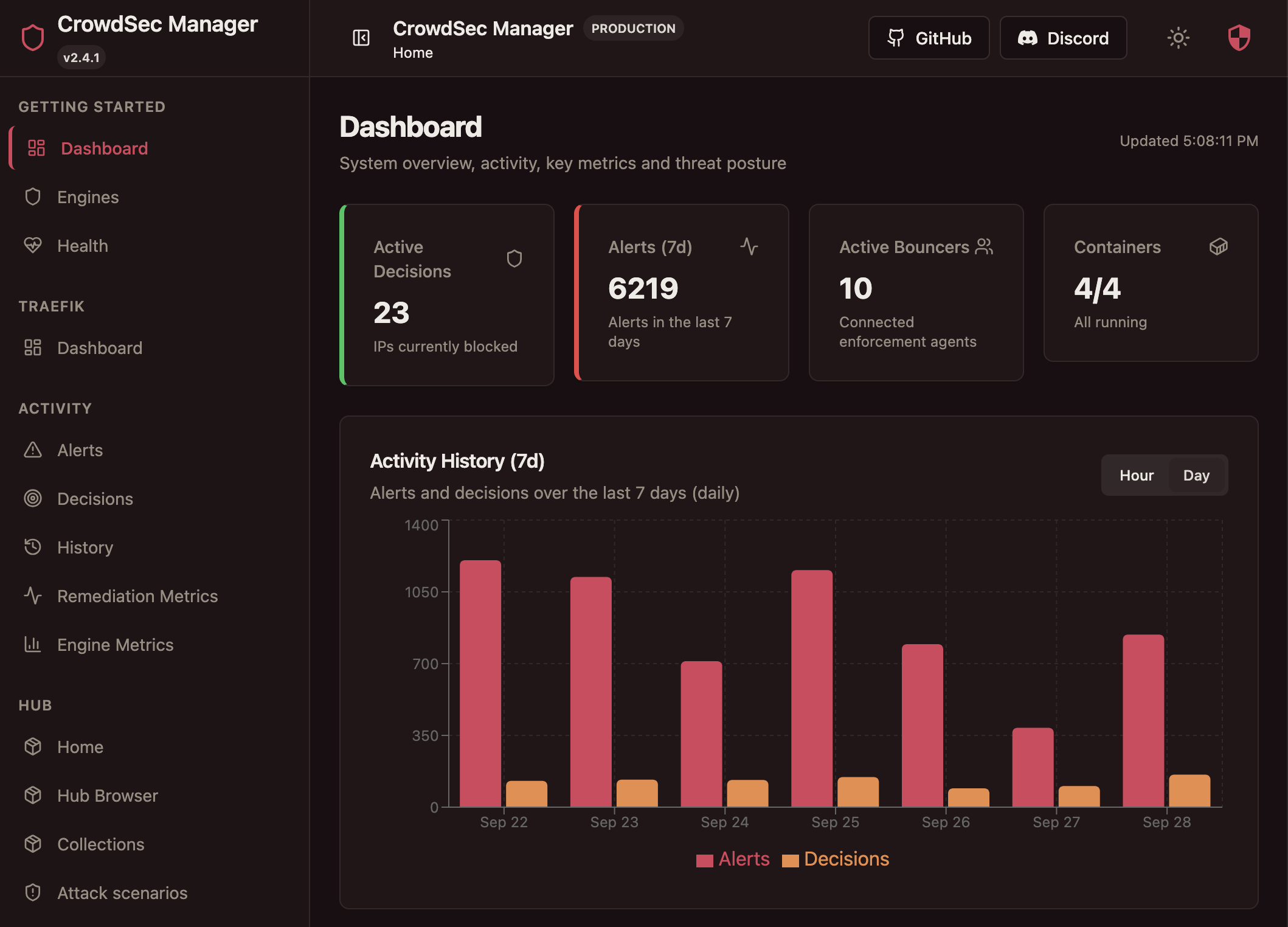
Crowdsec works really well from the command line, but sometimes it's nice to have a place that you can go to look at decisions, manage bans, and tweak your traefik-related config. Crowdsec manager puts a lot of control into a web UI to make managing your instance that much easier. If you're like me, there's something about a nice dashboard that makes managing stuff like this a little less daunting.
What You'll Need
- A fully functional Pangolin deployment
- Crowdsec and Traefik already running
- SSH access to your Pangolin host server
- A backup of your Pangolin compose file
Before beginning, always be sure you have a backup of your docker-compose setup.
cp docker-compose.yml docker-compose.yml.bak
cp -r config config.bak
Step 1: Add the service to your docker-compose.yml
crowdsec-manager:
    image: hhftechnology/crowdsec-manager:latest
    container_name: crowdsec-manager
    restart: unless-stopped
    expose:
      - "8080"
    ports:
      - "8081:8080"
    environment:
      - PORT=8080
      - ENVIRONMENT=production
      - TRAEFIK_DYNAMIC_CONFIG=/etc/traefik/dynamic_config.yml
      - TRAEFIK_CONTAINER_NAME=traefik
      - TRAEFIK_STATIC_CONFIG=/etc/traefik/traefik_config.yml
    volumes:
      - /var/run/docker.sock:/var/run/docker.sock
      - /root/config:/app/config
      - /root/docker-compose.yml:/app/docker-compose.yml
      - ./backups:/app/backups
      - ./data:/app/data
On the primary Pangolin host, open your docker-compose.yml file. Indentation means everything in yaml, so make sure you are indenting properly. Paste the above into the file, press control + x and enter to save.
Step 2: Start it
docker compose up -d crowdsec-managerMake sure to check that it came up alright.
docker compose logs -f crowdsec-manager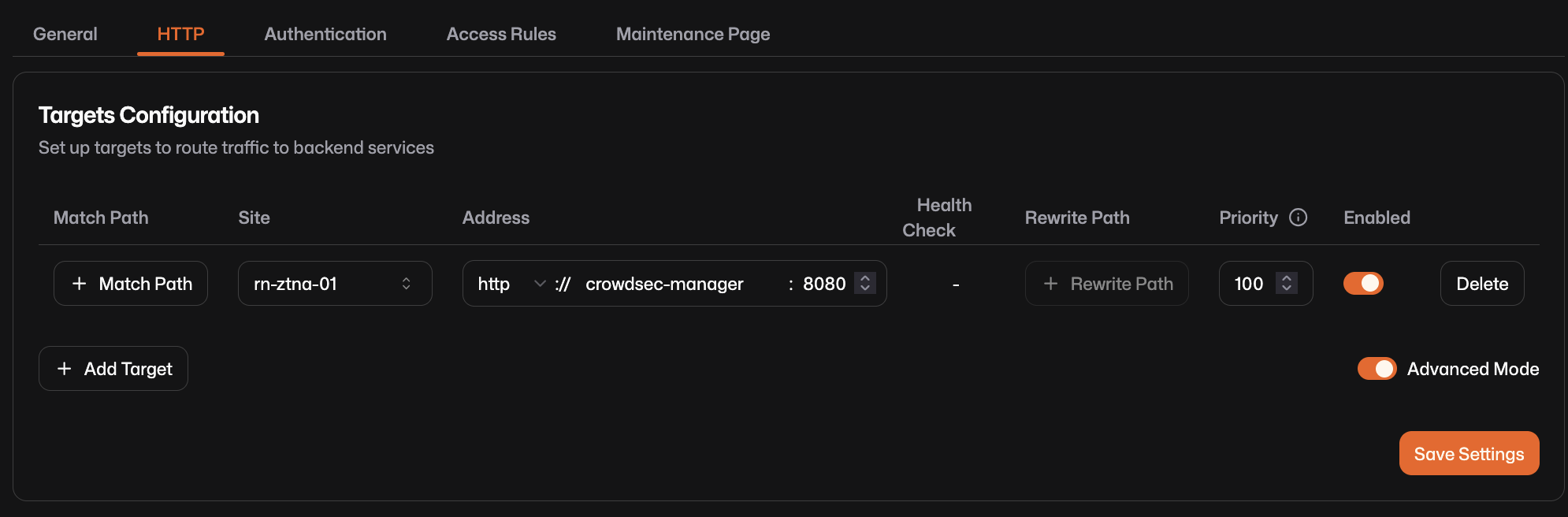
You can see in the docker-compose.yml file that port 8080 was set. I configured the resource using the docker name since it's running in the same network as the other docker services, so it resolves correctly.
Also be sure to set the site as the primary pangolin host, and not a newt site to ensure proper routing occurs.
From here you can manage several aspects of crowdsec management. For me, creating and managing allowlists has been super important, especially for things like whitelisting my work IP, etc so I don't get knocked out of my services.
If you are visiting one of your Pangolin resources and get hit with the constant 403 error, check that your current IP is added to an allowlist.
Final Thoughts
This is a very integrated admin panel. Please be sure to keep this behind proper authentication and protection. You may want to pin an image version instead of keeping on latest, but I choose to stay on latest so I ensure I get the latest features and security updates from the developer.
To Note:
I am having issues with it staying connected to Crowdsec web portal. https://app.crowdsec.net/ . After adding the key, the device shows up in the crowdsec portal, however it does not reflect it in the GUI within Crowdsec Manager. I hope this functionality is restored in future updates.