DoT & DoH With Technitium and Pangolin ZTNA
I haven't seen too many articles online about getting DNS-over-HTTPS (DoH) and DNS-over-TLS (DoT) working together, which sparked the idea of starting a blog on some of my IT-related adventures, in hopes that they may help someone else along the way. Technitium also supports DNS-over-Quic (DoQ).
While Technitium does have a great article on getting DoH setup (https://blog.technitium.com/2020/07/how-to-host-your-own-dns-over-https-and.html) I haven't found many resources that tie everything together through a Pangolin tunnel.
I have a few different goals in mind when setting this server up. Firstly, I wanted a private DNS server available on my Pixel phone running GrapheneOS when I am external to my home network. Android only has the ability to run DoT through the OS itself. I also have my kids iPhones that I wanted to deploy a dns setting to the iPhones through ManageEngine MDM so that they use DoH when outside the network as well. Additionally, I wanted an upstream DNS server for my home network so I don't rely on commercial DNS providers at all.
But why DoT or DoH? DNS is unencrypted using port 53. Anyone can intercept your traffic and understand what you're looking up. Not ideal. Enter DoT and DoH! DoT uses port 853 and DoH uses port 443 (which blends in with your typical web traffic).
I'll assume that things are mostly setup for your configuration already. That being, Pangolin and Technitium are already running.
What you need:
- A public domain name
- I use Cloudflare as my domain registrar and for providing dns for Pangolin
- A public server / VPS with a static IP.
- I use external VPS servers; one for hosting Pangolin and another for hosting services like Technitium.
- I've been using Racknerd for cheaper VMs ($3/mo) and DigitalOcean for hosting Pangolin itself. DigitalOcean tends to be a little more expensive, but I like the firewall/networking management and the backups it provides.
- Racknerd recently introduced firewall management capabilities in their "Control" platform. While it's not as robust as Digital Ocean, it's a start.
- Technitium DNS Server (I prefer running in docker)
- Pangolin
A few notes on the compose.yaml download.
I'm still trying to figure out how to embed the compose yaml while maintaining proper structure. Downloads are sketchy; I'd rather embed.
I included my configuration for the hawser agent, which is an agent used by Dockhand to monitor and update docker images. I think the tool is amazing and wanted to keep that in there, as you can monitor external VPS systems with their edge agent configuration.
Grab the certificate
Since DoT and DoH use encryption, they need a certificate to verify the traffic. With Pangolin, it creates and maintains a wildcard certificate with how I have things setup using Traefik DNS-01 challenges.
Pangolin has great docs about setting up wildcard certs: https://docs.pangolin.net/self-host/advanced/wild-card-domains
I decided to script the renewal sync of the Let's Encrypt certificate instead of having to manually import the certificate before it expires. Since Pangolin automatically renews certificates, I wanted to script the renewal on the technitium side as well.
- Generate a dedicated SSH keypair on the technitium DNS host, used only for this automatic renewal process.
- ssh-keygen -t ed25519 -f /root/.ssh/dns_cert_sync -N "" -C "dns-cert-sync"
- Copy the public key to the Pangolin VPS
- ssh-copy-id -i /root/.ssh/dns_cert_sync.pub root@<pangolin-vps-ip>
- This must be run from the technitium VPS. Running it from the wrong system will look like it works, but it'll install the wrong key.
- ssh-copy-id -i /root/.ssh/dns_cert_sync.pub root@<pangolin-vps-ip>
- Locate the acme.json file on the Pangolin VPS.
- find /opt -iname acme.json 2>/dev/null (or if nothing is found)
- sudo find / -iname acme.json 2>/dev/null
- Extraction script on the Pangolin VPS that pulls two base64 blocks.
!/bin/bash
ACME_JSON="/path/to/acme.json"
DOMAIN="yourdomain.com"
RESOLVER="letsencrypt"
jq -r --arg resolver "$RESOLVER" --arg domain "$DOMAIN"
'.[$resolver].Certificates[] | select(.domain.main == $domain) | .certificate'
"$ACME_JSON"
echo "---SPLIT---"
jq -r --arg resolver "$RESOLVER" --arg domain "$DOMAIN"
'.[$resolver].Certificates[] | select(.domain.main == $domain) | .key'
"$ACME_JSON"
- Lock down the SSH key to only run with this one script!
command="/opt/pangolin-scripts/extract-cert.sh",no-port-forwarding,no-X11-forwarding,no-agent-forwarding,no-pty ssh-ed25519 AAAA...<your key>... dns-cert-sync
- Store the technitium .pfx password in a locked-down file rather than hardcoded into the script itself.
echo -n 'your-password' > /root/.dns-pfx-pass
chmod 600 /root/.dns-pfx-pass
- Write the sync script on the Technitium VPS.
#!/bin/bash
set -euo pipefail
REMOTE_HOST=""
REMOTE_USER="root"
SSH_KEY="/root/.ssh/dns_cert_sync"
PFX_OUT="/path/to/dns.pfx"
PFX_PASS_FILE="/root/.dns-pfx-pass"
STAMP_FILE="/path/to/.last-remote-check"
WORKDIR=$(mktemp -d)
trap 'rm -rf "$WORKDIR"' EXIT
RAW=$(ssh -i "$SSH_KEY" -o BatchMode=yes -o StrictHostKeyChecking=accept-new
"${REMOTE_USER}@${REMOTE_HOST}")
CERT_B64=$(echo "$RAW" | sed -n '1,/---SPLIT---/p' | sed '$d')
KEY_B64=$(echo "$RAW" | sed -n '/---SPLIT---/,$p' | sed '1d')
echo "$CERT_B64" | base64 -d > "$WORKDIR/cert.pem"
echo "$KEY_B64" | base64 -d > "$WORKDIR/key.pem"
NEW_HASH=$(sha256sum "$WORKDIR/cert.pem" | awk '{print $1}')
OLD_HASH=$(cat "$STAMP_FILE" 2>/dev/null || echo "none")
if [ "$NEW_HASH" == "$OLD_HASH" ]; then
echo "$(date): cert unchanged, skipping."
exit 0
fi
PFX_PASSWORD=$(cat "$PFX_PASS_FILE")
openssl pkcs12 -export -out "$PFX_OUT" -inkey "$WORKDIR/key.pem" -in "$WORKDIR/cert.pem" -passout "pass:${PFX_PASSWORD}"
echo "$NEW_HASH" > "$STAMP_FILE"
echo "$(date): dns.pfx updated successfully."
- Schedule with a cron job
crontab -e
0 4 * * * /path/to/sync-dns-cert.sh >> /var/log/dns-cert-sync.log 2>&1
Now the certificate is automated to sync to the Technitium DNS VPS host each day. If nothing changes, the certificate updates the dns-cert-sync.log file as such so you can reference it.
Now it's time to enable the protocols within Technitium DNS!
- In the web console, Settings -> Optional Protocols.
- Point TLS Certificate to the file path
- For me this was in docker, so the file path was just "dns.pfx" without quotes. Input your password as well.
- Enable DNS-over-TLS (port 853) and DNS-over-HTTPS (port 443), optionally enable DNS-over-Quic. and Save!
- Point TLS Certificate to the file path
Getting certificates working is only part of the entire battle. For me, tackling port configuration took the most amount of time to figure out. This is mainly due to how DoT, DoH and DoQ behave at the network level.
DoH leverages HTTPS (443) traffic, so setting up through Pangolin was simple.
DoT runs on port 853, but with Pangolin needs to be set up as a TCP resource.
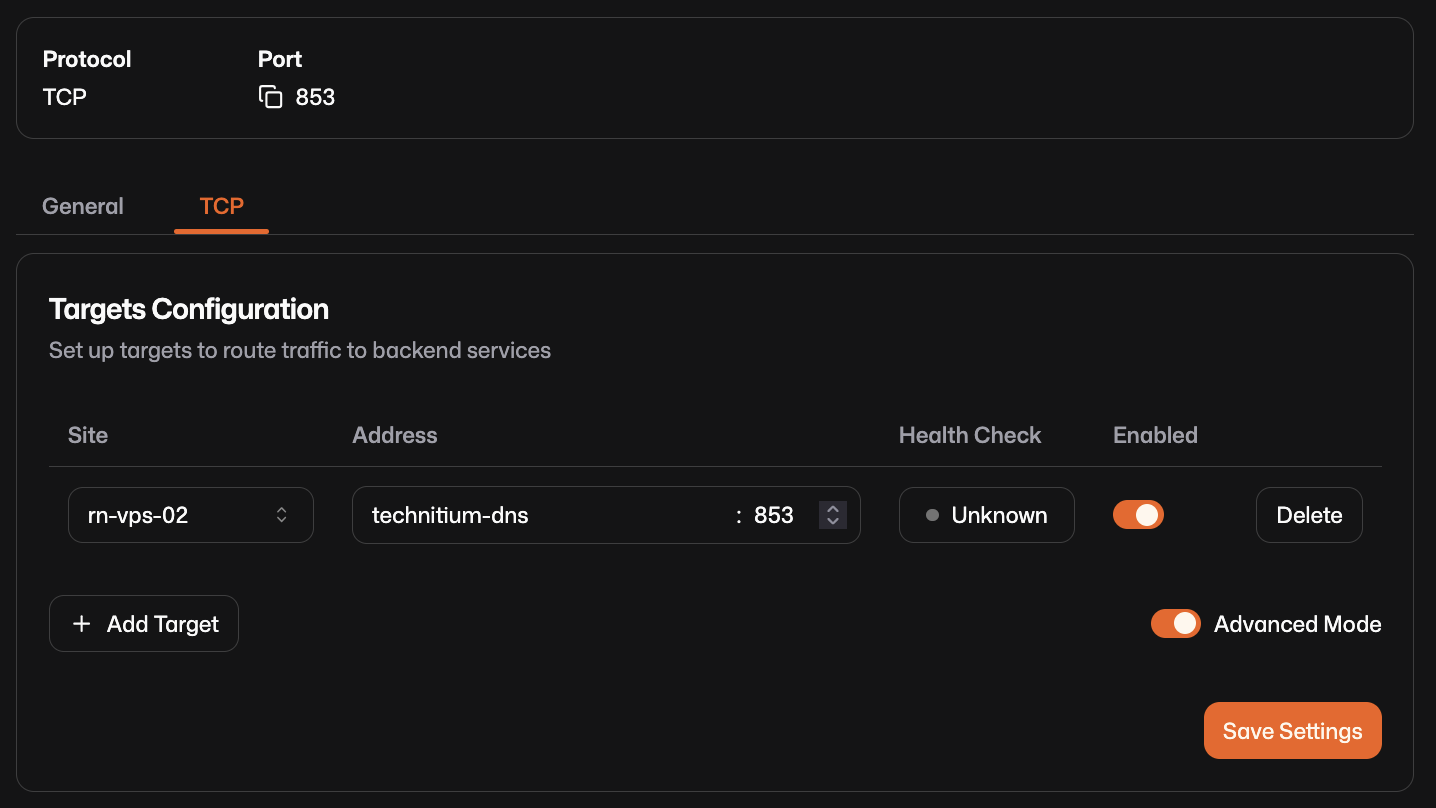
While you're in there, you can also configure a DoQ resource for port 853, but UDP. Notice I used the Docker container name for the address (technitium-dns) since everything is on the same Docker network.
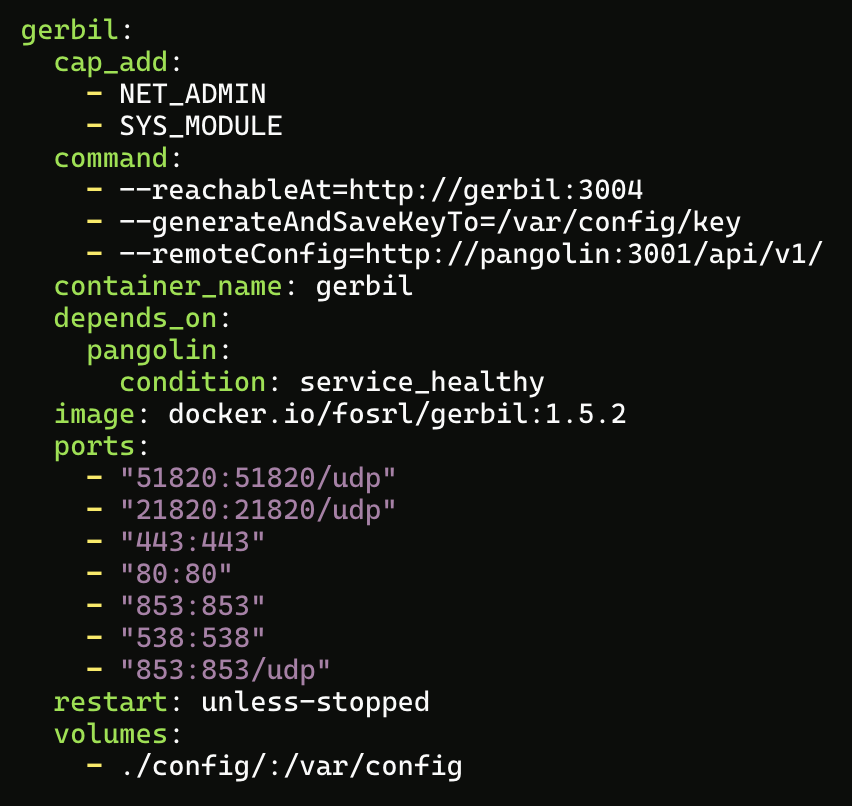
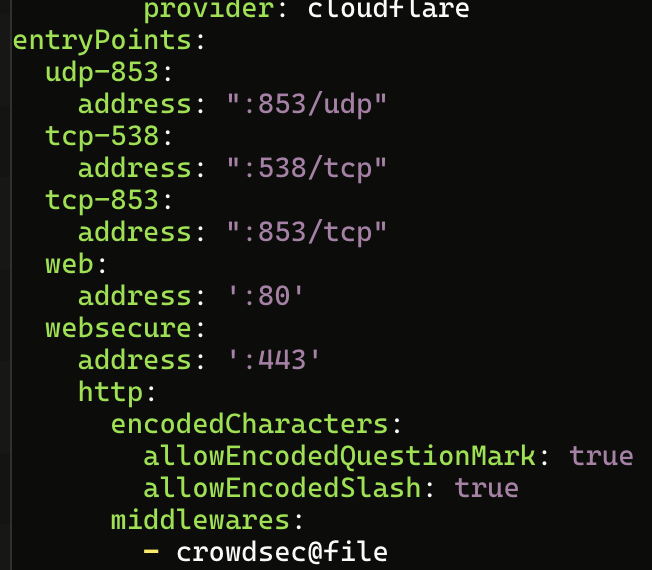
Setting up ports requires some additional modification of two files within your Pangolin setup. Once you save your settings for the TCP/UDP resources, the Pangolin UI pops up and shows you the exact entrypoint names/ports to add once you save the new resource .
The two changes are done on your Pangolin host VPS/VM.
- docker-compose.yml - add the ports to the gerbil section
Then you cd from the main level into your "config" folder, then "traefik". Once in that folder, sudo nano traefik_config.yml.
Once those ports are added to the two configuration files, you can restart the entire docker stack, either by rebooting the VM or performing "docker compose down && docker compose up -d".
After your stack is back up, things should be flowing between your Pangolin host and your technitium DNS host.
Make sure that your VPS firewall allows ports 853 TCP/UDP and 443.
You can test by running:
# DoT
- kdig @dns.yourdomain.com +tls yourdomain.com
# DoH
- kdig @dns.yourdomain.com +https yourdomain.com
# DoQ
- kdig @dns.yourdomain.com +quic yourdomain.com
A couple things to be aware of:
+httpsand+quicwant a plain hostname after@— not a full URL.kdig @https://dns.yourdomain.com/dns-queryfails with a confusing DNS resolution error;kdig @dns.yourdomain.com +httpsis correct.- If you're testing DoH with
curlinstead, a bare request to/dns-querywith no query parameters will get you a400 Bad Requestfrom Technitium — that's expected, not broken. It just means you sent an incomplete request, not a real DNS query in the wire format DoH expects.
Client-IPs
One thing that was unexpected for me was that DoT and DoQ traffic does not preserve the client IP address, while DoH does. I'm not sure why this is the case, but I tested a few ways with leveraging the proxy protocol. Every variation of test I tried resulted in poor results in DNS resolution, so I gave up on that effort. Any traffic that comes from DoQ or DoT show my internal docker address, and not the real public IP. I feel like I can live with this, but if anyone has success getting it working, I'd be happy to hear about it.
Troubleshooting
DoQ for me became a tricky troubleshooting effort all around. The symptom was that the kdig +quic failed to run directly on the Technitium VPS itself. Nothing external was involved, no Pangolin, no tunnels. I tackled troubleshooting in this order:
- Docker UDP proxying. Tested this by running Technitium temporarily with --network host to bypass docker-proxy entirely. This provided the same failure.
- Missing libmsquic? Checked. Confirmed present, so onto the next piece.
- Technitium not actually listening on the correct port.
- ss -ulnp | grep 853
- UDP listener was active. So that wasn't it.
- ss -ulnp | grep 853
The turning point of this troubleshooting endevour was actually when I tested against the VPS's public IP instead of the loopback address. This completed a full QUIC/TLS handshake and I got a DNS response back, although it was REFUSED. This told me that the protocol itself was fine end-to-end, and it showed me which network path the dns query took.
From there I tested through the actual Pangolin hostname, with no handshake at all. A tcpdump on the Pangolin host during a live query attempt showed nothing even attempting to arrive.
After a few hours of more troubleshooting, it hit me. I had turned on the network firewall at the VPS host (Racknerd) and forgot to include port 853 UDP. I had TCP, but no UDP. Whoops. Lesson learned, always check your firewalls!