Protecting Technitium's Admin UI with Pangolin While Keeping DNS Public
I run Technitium DNS Server on a VPS and I wanted to do a bunch of cool things with it:
- Act as my personal DNS server for my Pixel running GrapheneOS and my kids' iPhones when they're off my primary network.
- Keep the admin UI locked behind Pangolin's zero trust model, so authentication and access control match my needs.
- Operate as a upstream forwarder for my on-prem technitium instances, so I don't rely on any public DNS provider (like cloudflare).
The Challenge:
Since technitium hosts both dns resolution and the admin panel from the same docker image, it becomes difficult to expose one while hiding the other.
The Setup:
VPS 1 - rn-ztna-01 - Runs Pangolin.
VPS 2 - rn-vps-02 - Runs technitium in Docker Compose, plus a newt tunnel in docker that connects the VPS back to the first VPS.
Pangolin offers two primary sites that we're dealing with:
- dns.example.com - not protected
- admin.dns.example.com - protected
The idea I wanted to showcase is that Pangolin can protect per resource, and not necessarily just by per server as most protect their resources as. Technitium's DNS-over-HTTPS endpoint and the admin GUI are separate resources pointing at separate ports, so you can have one open and another behind security.
compose.yml
services:
  technitium:
    image: docker.io/technitium/dns-server:latest
    container_name: technitium-dns
    hostname: rn-vps-02-dns
    restart: unless-stopped
    ports:
      - "53:53/udp"          # Standard DNS (UDP)
      - "53:53/tcp"          # Standard DNS (TCP)
      - "853:853/tcp"        # DNS-over-TLS (DoT)
      - "853:853/udp"        # DNS-over-Quic (DoQ)
      - "127.0.0.1:5380:5380/tcp" # Web console (bound to localhost for Newt proxy)
    environment:
      - DNS_SERVER_DOMAIN=dns.example.com
      - DNS_SERVER_ENABLE_PROXY_PROTOCOL_TCP=true
      - TZ=America/Denver
    volumes:
      - ./config:/etc/dns
    networks:
      - pangolin-net

  pangolin-site:
    image: fosrl/pangolin-cli
    container_name: pangolin-site
    restart: unless-stopped
    environment:
      - PANGOLIN_ENDPOINT=https://ztna.example.com
      - SITE_ID=<site ID>
      - SITE_SECRET=<site secret>
    networks:
      - pangolin-net

  hawser:
    image: ghcr.io/finsys/hawser:latest
    container_name: hawser
    restart: always
    environment:
      - DOCKHAND_SERVER_URL=wss://dock.exmaple.com/api/hawser/connect
      - TOKEN=<token>
    volumes:
      - /var/run/docker.sock:/var/run/docker.sock
      - hawser_stacks:/data/stacks

volumes:
  hawser_stacks:

networks:
  pangolin-net:
    driver: bridge
I've included hawser (as I did in a prior blog post) because I'm a big fan of dockhand for keeping my docker instances updated. You can run this as the edge agent and monitor/manage your docker resources through the web.
Ok, now onto our regularly scheduled programming...
Locking down the admin port
Technitium DNS uses port 5380 for the management port. I assigned the port to localhost (127.0.0.1) which means that the admin UI would not be accessible from the internet. This ensures that newt can bind to port 5380 and assign the appropriate security controls around the admin resource specifically.
If you need help getting DoH, DoT, or DoQ working, check out my other blog on that.
On the pangolin side, I created two resources.
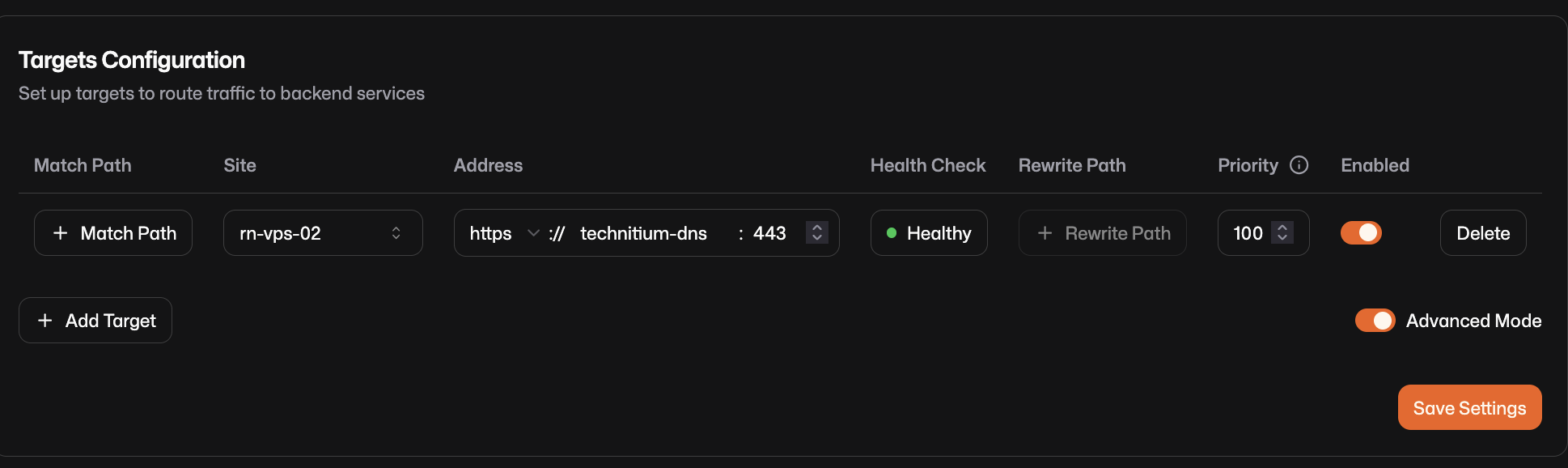
- dns.example.com -> (Public) Since it lives in the same docker network, I used the docker image name and set the health check for HTTPS port 443. Additionally, I made some security adjustments where it only allows traffic from the US. It's a small security step, but I figure that will cut out on some of the DDoS attempts.
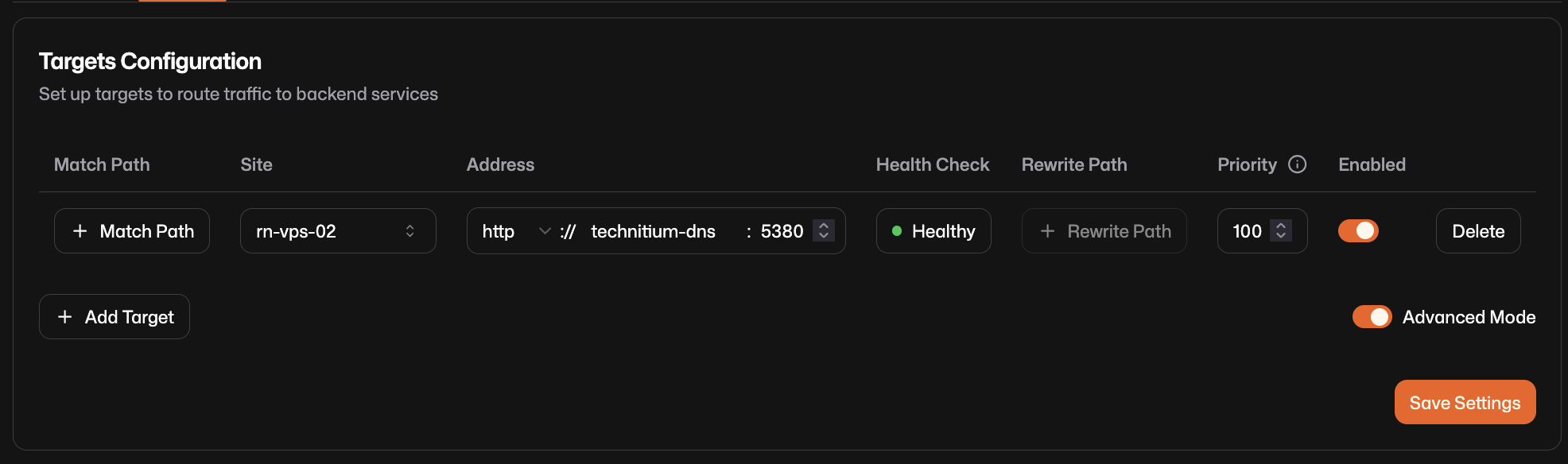
- admin.dns.example.com -> (Protected) This is where the security policies really go. I did the same resource name (technitium-dns) and assigned port 5380 for the admin port. I'm also a big fan of setting shared policies within Pangolin, so you can be assured a baseline security set is applied to all of the resources you assign the shared policy to.
- On my shared policy, I have a baseline security set that allows my public IP, my work IP, and blocks IPs outside of the US by default. That way, if my ISP ever changes my IP, I just update the shared policy and it updates all of my resources.
Test
# From the internet: the admin port should be closed
nc -zv <vps-public-ip> 5380        # should fail / time out

# From the VPS itself: the UI answers locally
curl -I http://127.0.0.1:5380      # should return 200

# Public DoH answers without login
curl -H 'accept: application/dns-json' \
  'https://dns.example.com/dns-query?name=example.com&type=A'

# Admin hostnames redirect to Pangolin's login
curl -I https://admin.dns.example.com
Final Thoughts
I think this is a pretty decent way to protect a public DNS server from DDoS, especially when dealing with unauthenticated DoH endpoints. You can restrict recursion within Technitium DNS Server itself, or rate limit. In my time of running this setup, I have not had any issues with uncontrolled queries to the server by implementing some baseline security practices within Pangolin itself. If anyone has additional security controls they implement, please let me know!
And remember, you should still include a strong password for your Technitium admin portal, and ensure you are on the latest available version. Using a tool like dockhand can help manage scheduled updates to your containers.